Practice - CSS Text & Color
Purpose
Style text and color through Cascading Style Sheets.
Practice using the Developers Tools CSS Panel.
Textbook Reference
- Chapter 12: Formatting Text
- Chapter 13: Colors and Backgrounds (pages 303-338)
Instructions
Directory Structure
- Download the practice-textColors.zip and save it into your practice folder for this course.
- Open the webpage, index.html in VS Code, and the browser.
- Besides adding the link element to the HTML document, NO changes should be made to the HTML.
Add an External Stylesheet
The styles.css stylesheet has been started already.
- Link styles.css as an external stylesheet in index.html.
Format the Text
Body Text
- Set a serif, web-safe font stack on the
<body>element (use the existing body selector). - Set the line height on
<body>to 1.5.
Headings and text sizes
- Increase the
<h1>font size using rem units (example: 2rem or larger). - Set a font size for
<p>(paragraphs) using em units (example: 1.1em).
HyperLink
- Set a font size for a (anchor tags) using a percentage (example: 110%).
Class Selector
- Style the element(s) with the HTML class attribute "eventTime" to:
- appear bold
- use a sans-serif font-family
Descendant Selector
- Make the paragraph inside the footer bold and italic using a descendant selector
Add Color & Backgrounds
- Color the
<h1>using a color name (choose a dark color). - Color the
<h2>elements using RGB values (choose a dark color). - Color the
<a>(anchor tag) using HSL values. - Use the id values to style each section (about, events, featured) with a soft background color (any color format: name, hex, rgb, hsl, etc.).
- Apply jade.png as a background image to the body element and set the pattern to repeat only vertically.
Developer Tool Investigation
This section requires taking screenshots of your CSS Panel in the Developer Tools.
You will use Chrome Developer Tools to show your understanding in:
- Inheritance
- Conflicting styles
- Which rule is applied vs. crossed out
CSS Conflicts
- In styles.css, intentionally create a conflict by writing another rule that targets the
<p>element and assigns different values for the same property (for example, two different font sizes). - Open your Developer Tools in Chrome. Check out the section on Developer Tools from last week if you need a refresher on how to open it.
- In the Styles pane, find the conflict and take a screenshot showing:
- the rule that is crossed out
- the rule that wins (is applied)
- Save the screenshot as para-conflict.png in your screenshots folder.
CSS Inheritance
- In Chrome DevTools, inspect a paragraph inside main (for example, a
<p>inside the<main>content). - Take a screenshot showing where the paragraph’s font-family is being inherited from.
- Save the screenshot as para-inheritance.png in your screenshots folder.
- Find one more element where a style is being inherited and take a screenshot.
- Save it as more-inheritance.png in your screenshots folder.
Computed Pane
- Inspect one element of your choice.
- Click the Computed tab (next to Styles).
- Find a style that is coming from the User Agent Stylesheet.
- Take a screenshot that clearly shows this.
- Save the screenshot as computed-styles.png in your screenshots folder.
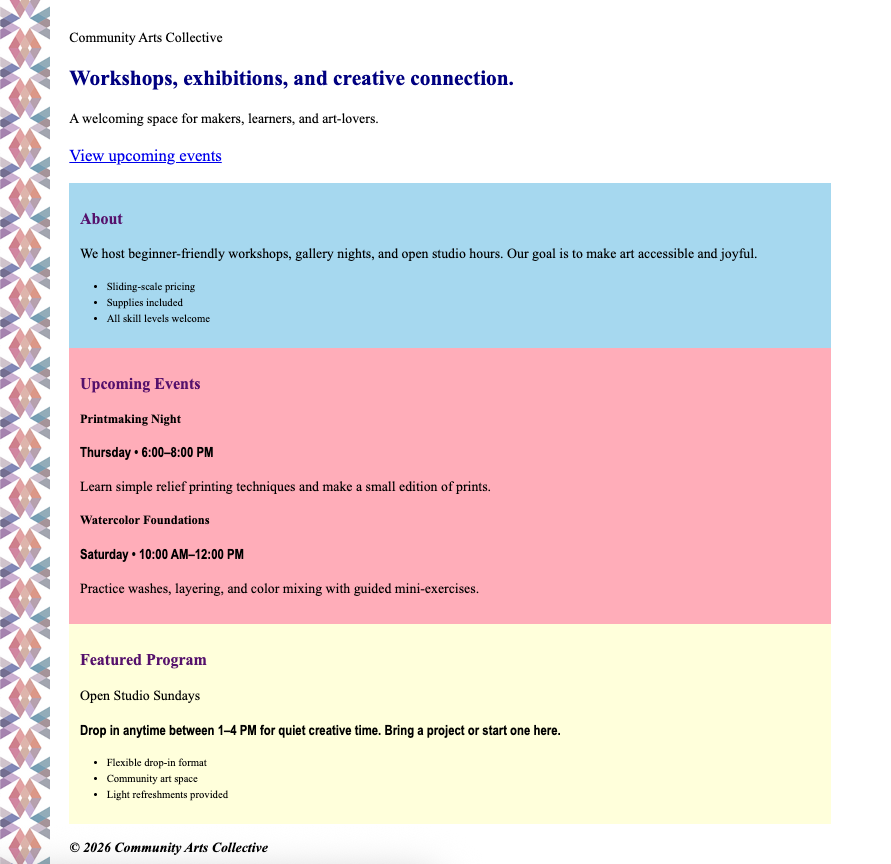
Sample Output
Note: your colors and font choices will vary depending on your choices above.
HTML Validation
- Go to https://validator.w3.org/
- Click on the Validate by File Upload
- Click on the Choose file button and navigate to the location of your HTML document.
- Click the Check button
- Print it as a PDF and save it into a folder named validations in your practice-textColor folder
- Name the PDF indexValidation.pdf.
CSS Validation
- Go to https://jigsaw.w3.org/css-validator/
- Click on the by File Upload option
- Click on the Choose file button and navigate to the location of your CSS document.
- Click the Check button
- Print and save as a PDF and save the validation in a folder called validations in your practice-textColor folder
- Name the PDF cssValidation.pdf
Grading Criteria
- The correct file directory structure exists in the
practice-text-colorsfolder along with the HTML and CSS validation. - All course coding standards have been followed.
- All text formatting follows practice instructions and is implemented correctly.
- All color follows practice instructions and is implemented correctly.
- All backgrounds follow practice instructions and is implemented correctly.
- Screenshots showing a CSS conflict, inheritance, and the computed pane are saved to the screenshots folder.
- Reflection questions are answered honestly and thoroughly.
Submission
Part 1: Reflection
- Locate the submission link for this assignment in Brightspace: Unit 2 > Practice > Text & Color.
- Copy the below text (there is a copy icon in the upper-right of the textarea) and paste it into the Comments section.
- Answer the questions in the Brightspace.
1. How are you doing? Are you encountering any issues preventing you from completing this week's assignments? What can I do to better support you this week?


2. Describe one moment in this week’s coding practice that made you say “Oh!” or changed how you understood something. What clicked?


3. What challenges (if any) did you encounter in your learning this week? To help, try using this sentence format: This week, I struggled with ________. I think this challenge came up because ________. To work through it, I ________.


4. What questions (if any) do you have about the material covered this week?
Part 2: Upload .zip
- Compress your entire practice-text-colors folder to a .zip (zipped) file.
-
Do not zip the practice or Web Development folders. You should have the following files/folder in the zip file:
- images (folder)
- jade.png
- stylesheets (folder)
- styles.css
- screenshots
- para-conflict.png
- para-inheritance.png
- more-inheritance.png
- computed-styles.png
- validations (folder)
- 1 HTML validation file
- 1 CSS validation file
- index.html
- images (folder)
-
Click on "Upload" to upload your .zip file or you can drag and drop it into the submission window.
- Click "Submit"