Demo - Color
Textbook
- Chapter 13: Colors and Backgrounds
- Like a Rainbow (Gradients) is optional
Image Source: The Ultimate Guide to CSS Colors (2020 Edition)
Color Values
There are multiple ways of specifying colors in CSS.
- Color names
- RGB color values
- RGBa color
- Hexadecimal values
- HSL color values
- HSLa values
- CMYK color values
Color Names
We have been using predefined color names so far in this course. As of now, there are 140 defined color names.
RGB Color Values
To be able to choose from millions of different colors, we can specify the color values in RGB. Computer monitors and any digital device creates colors by combining Red (R), Green (G), and Blue (B). The RGB color model mixes different light "channels" that, when mixed in different combinations create the color you see.
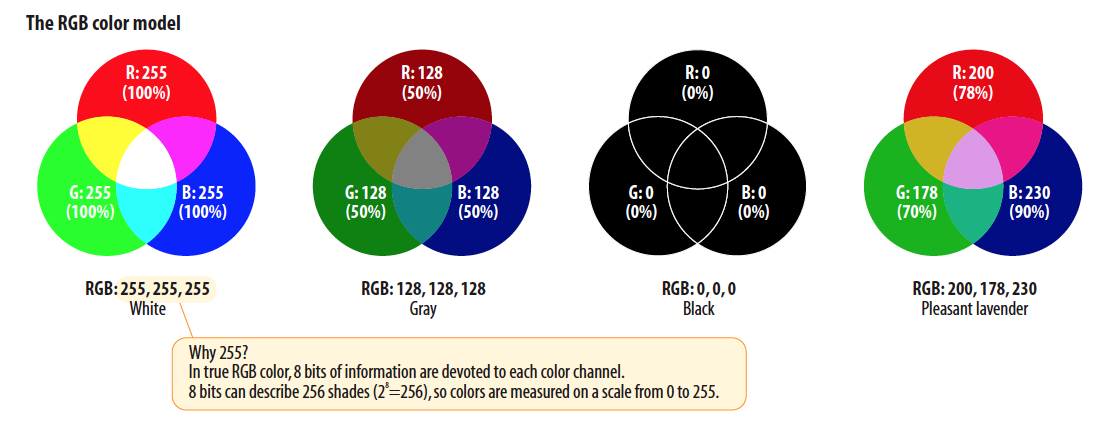
- Each channel (red, green, or blue) takes a value between 0 - 255.
- If all channels are 255, you have white
rgb(255, 255, 255); - If all channels are 0, you have black.
rgb(0, 0, 0);

- Download the color.zip file and open the website in VS Code and your browser.
- Spend a moment studying the HTML structure and CSS.
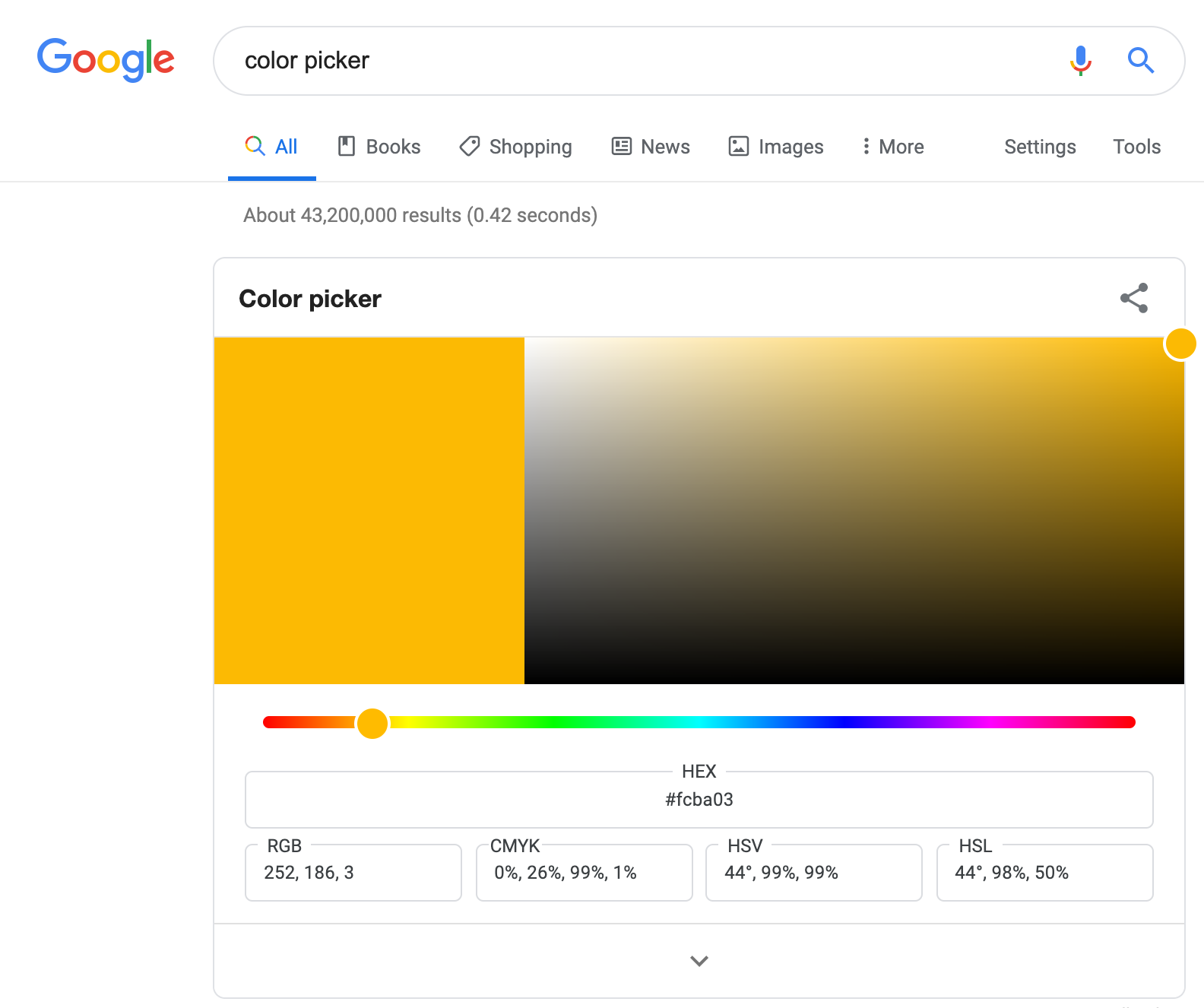
- Type in "Color Picker" in the Chrome web browser.
- You can play with picking any color and copy the RGB values below.
-
Choose a color you like and apply it to color the
<h1>element.h1 { font: bold 1.5em Georgia, serif; text-shadow: .1em, .1em, .2em, grey; color: rgb(84, 33, 69); }
There are many different color pickers on the web to use. If you recall from our lecture on the Developer Tools, you even have a color picker there!
Hexadecimal Values
You can write the RGB values in a hexadecimal (hex) format. Hexadecimal numbers are a 16-based number system. It uses 16 digits (0-16) and A-F to represent the quantities. The hex system is commonly used in computing because it reduces the space it takes to store certain information.
Most color pickers provide the hex value along with the RGB values. The values are proceeded by the pound/hash symbol to indicate they are Hex values.

-
Go back to your color picker and copy a hexadecimal value to color your
<h2>elementsh2 { font-size: 1em; text-transform: uppercase; letter-spacing: .5em; text-align: center; color: #c92279; }
RGBa Values
The RGBa color values add a fourth "channel", the alpha channel. This channel allows you to specify the level of transparency. However, older browsers like IE8 do not support this channel, so you need to provide a backup color.
Foreground vs Background Colors
-
The foreground color consists of the text color and a border (if there is one). We will learn more about borders in the next lecture.
-
The background color fills the "canvas" behind the element, extending to the outer edge.
Let's color the dessert section of our menu.
CSS selector pop-quiz!
How would we style this section element without affecting the other section elements on the page?
-
Place a
borderaround this section. The syntax for creating abordercan take three values:- The width of the border
- The style of the border
- The color of the border
border: 4px dashed green;You can also specify these values separately, but the above shortcut is easier and what professionals do!
h2 {
    border-width: 4px;
    border-style: dashed;
    border-color: green;
}
If you don't specify a border color, it will use the color property value.
It's getting crowded!
Notice how crowded the text on the left is against the border? Not very pleasant, we'll learn how to fix this next week. But you can add
padding: 1em;now if you like. -
Add a background color. This property is rather straightforward. Use the
background-colorproperty and specify the color of your choosing. Make sure the text is still legible, so choose a light color.background-color: #deeffa; -
Zoom in. You can see that the background color fills into the border by seeing the color through the gaps in the border.
-
Add a light background to the body element. Choose a different color than the one used for the dessert section.
Background color info
- You can set the background color of any block-level and inline element
- Background colors do not inherit, because the default setting of all background elements is transparent. Therefore, you can apply a background color to the
<body>, and the color will display behind all other elements.
Background Images
In web development, background images are added using CSS, not HTML.
The most basic way to add one is with the background-image property. The url() value points to the image file location. Just like with , the file path must be correct.
body {
    background-image: url("images/background.jpg");
}
Why Background Images Are Applied with CSS
We use CSS (instead of HTML) for background images because:
- Background images are decorative, not content.
- CSS controls the presentation and layout of a page.
- It keeps structure (HTML) separate from styling (CSS).
- It gives you more control over positioning, repetition, and scaling.
Rule of Thumb for Images
- If the image is meaningful content (like a product photo), use an
element in your HTML.
- If the image is decorative (like a texture, banner, or subtle design element), use CSS.
This separation of structure and presentation is an important web design principle.
Common Background Properties
CSS gives you control over several aspects of a background image:
background-repeat– controls whether the direction the image tilesbackground-position– controls where the image is placedbackground-size– controls how large or small the image appearsbackground-attachment– controls whether the image scrolls with the page or stays fixedbackground(shorthand) – allows you to combine multiple background properties into one line
These properties let you adjust how the image looks and behaves without changing the HTML.
 Background images should not make text hard to read. Often, developers add background colors, overlays, or adjust contrast to maintain accessibility.
Opacity
Besides using the RGBa color format, you can specify opacity with the opacity property. It takes a value from 0 (completely transparent) to 1 (completely opaque). So a value of .5 gives an element an opacity of 50%.
-
Add some opacity to the dessert section.
opacity: .6;
You should notice that opacity affects both the foreground and background colors.