Git Overview
This page introduces version control and the tool we'll use for it all semester: Git. By the end you should understand what a repository is, how Git differs from GitHub, and the basic workflow you'll repeat every time you save and submit your work.
The big picture
Git is software running in your coding environment (this semester, your GitHub Codespace) that tracks the history of your files. GitHub is an online service that stores a copy of that history in the cloud so you can back it up, collaborate, and submit work for feedback. You'll run Git commands, then push your work to GitHub.
Why Version Control?
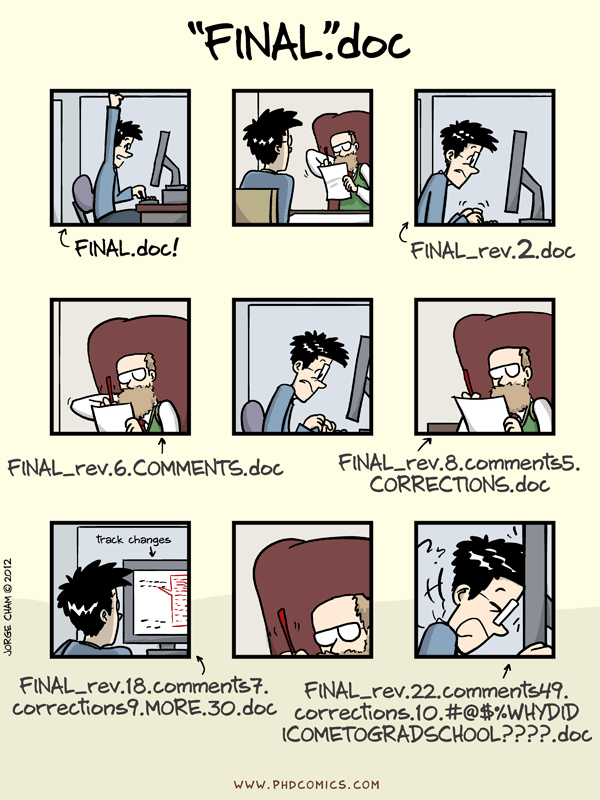
Does this look familiar?
Or this?
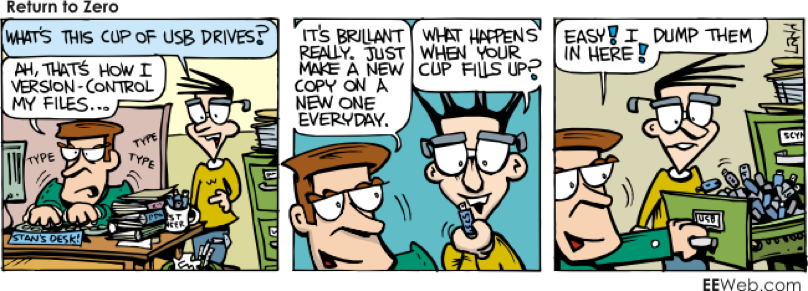
Manually renaming or copying files to track versions quickly becomes unmanageable. Tools like Dropbox and Google Drive add some versioning, but they have real limits:
- Recovering old work — Previous Versions (Dropbox) or Revision History (Google) can restore a file from an earlier point in time.
- Time limits — there are limits on how long old versions are kept.
- Comparing changes — it is difficult to see exactly what changed between versions.
- Collaboration — there is only a single shared copy, which makes working together hard.
Version control systems are built to solve exactly these problems.
What Is a Repository?
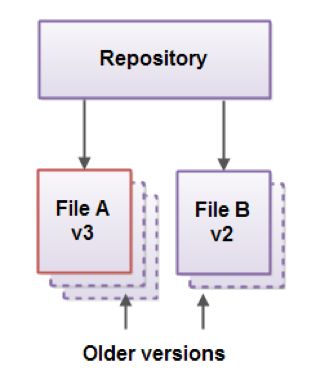
Think of a repository as a smart directory that tracks your file history. A repository stores the current version of every file along with its complete history. You can always go back to any earlier version of any file.
What Is Git?
Git is:
- Open-source software that tracks changes to your files.
- A distributed version control system.
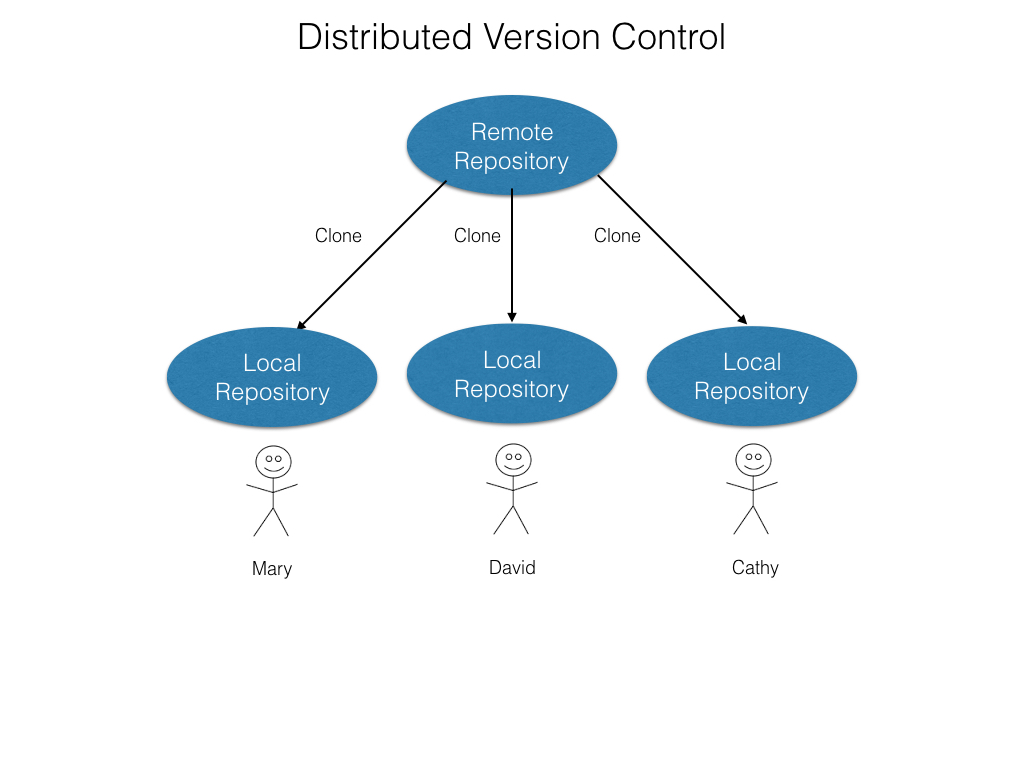
In a distributed version control system like Git, every developer clones the remote repository and gets a full copy of the project history on their own machine. Developers can work independently and later push their changes back to the shared remote repository.
Git vs. GitHub
We often use these two names interchangeably, but they are not the same thing.
- Git is the version control software that runs on your own computer. It tracks changes, stores your file history, and works entirely on your machine—even with no internet connection.
- GitHub is an online service (owned by Microsoft) that hosts Git repositories in the cloud. It adds collaboration features on top of Git, such as pull requests, issues, and access control.
A short analogy: Git is like the word-processing program on your laptop, while GitHub is like Google Drive, where you store and share the documents. You can use Git without GitHub, but in this course we use them together; Git to save your work locally, and GitHub to back it up and collaborate.
| Git | GitHub | |
|---|---|---|
| What it is | Version control software (a program) | A cloud hosting service / website |
| Where it runs | Locally on your computer | On remote servers, accessed at github.com |
| Internet required? | No—works fully offline | Yes—it is an online service |
| Main job | Track changes and manage file history | Store repositories online and enable collaboration |
| Created | Linus Torvalds, 2005 (open source) | GitHub, Inc., 2008 (now owned by Microsoft) |
| You interact via | Commands like git add, git commit, git push |
A website: pull requests, Issues, Codespaces, code review |
Setting Up a Repository
You do not need to complete these steps
There are two ways to get a repository on your machine. You do not need to complete these steps on your project repository from week 1 since it is already set up for you. However, if you ever start a project from scratch you will need to know how to initialize git and clone your repository.
-
Start a brand-new repository in the current folder, run the following command from the terminal:
$ git initThis creates a hidden
.gitdirectory. Think of it as a database that keeps track of the changes you make to your files. -
Copy an existing repository from a remote location (for example, from GitHub):
$ git clone SOME_REMOTE_URLThis creates a directory, adds a
.gitdirectory to it, and copies the files from the remote repository. Notice thatgit clonesets up.gitfor you automatically, so you do not need to rungit inityourself.
The Git Workflow
The process to "save" an backup your work
These steps are the workflow you will use each time you work on your code. It's the process of saving and backing up your work, so make sure to do them frequently. We will practice these steps in this weeks labs.
Once your repository is set up, you will repeat the same short cycle as you work:
- Edit — you modify files in your working directory.
- Stage — you add snapshots of those files to the staging area.
- Commit — you commit, saving the staged snapshot permanently to your local repository.
- Push — you push to the remote repository (for now, think of this as your backup on GitHub).
The four areas Git tracks
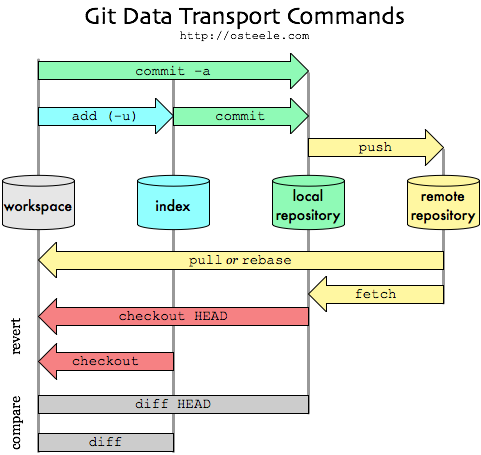
Git moves your work through four areas:
- Workspace (also called the working directory): where you edit your files.
- Index (also called the staging area): where you collect changes before committing.
- Local repository: where committed snapshots are permanently stored in your own environment (your Codespace).
- Remote repository: the shared copy hosted on a server such as GitHub.
What 'local' means when you use a Codespace
In this course you work in a GitHub Codespace—a development environment that GitHub runs for you in the cloud. That can make the words local and remote confusing, because your "local" environment is technically also on the internet.
The key idea: local vs. remote is about whose copy it is, not where the computer physically sits.
- Local = the copy you are working in right now — your Codespace. Only you can see the changes here.
git addandgit commitact on this copy. It is "local" because it is your private working copy, separate from the shared one. - Remote = the shared copy on GitHub.com (git calls it
origin). You and your instructor can see it.git pushsends your local commits up to it;git pull/git fetchbring changes back down.
So when these pages say a commit is saved to your local repository, that means it is saved inside your Codespace—safe, but visible only to you. It does not reach GitHub until you run git push.
Command reference
These are the commands that move your work between those areas:
| Command | What it does |
|---|---|
git add |
Moves changes from the workspace to the index (staging area) |
git commit |
Moves staged changes from the index to the local repository |
git commit -a |
Stages and commits all tracked changes in one step, skipping a separate git add |
git push |
Sends commits from the local repository to the remote repository |
git pull |
Fetches changes from the remote repository and merges them into the workspace |
git fetch |
Downloads changes from the remote repository into the local repository without touching the workspace |
git checkout |
Reverts workspace files back to a previous state from the local repository |
git diff |
Compares differences between the workspace and the index |
Local Workflow at a Glance
Most of your day-to-day work happens in the three local stages below, before you push to GitHub.
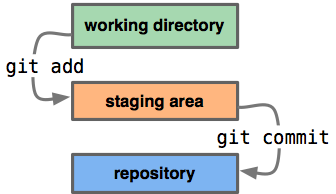
The local Git workflow has three stages. You edit files in your working directory. You use git add to move changes to the staging area, where you can review what will be included in your next commit. You use git commit to save a permanent snapshot of those staged changes into the repository.