Lab 9 – Debugging and Javadoc
Objective
- Practice working with code written by another developer.
- Practice debugging compiler errors, runtime errors, and logic errors. Many of these are common errors that students encounter in Project 1. My hope is that if you solve them here, they will be much easier to solve if you encounter them again in Project 1.
- Practice with an application consisting of multiple files to help prepare you for project 1.
- Practice writing proper javadoc style comments.
Program Design
Study the following class diagram and sequence diagram of the Trail Guide application. The purpose of this program is to load a CSV file and parse it for trail information. It then outputs the trails to the console.
Class Diagram
This class diagram was build using IntelliJ, so it looks a little different than the Project 1 Class Diagram.
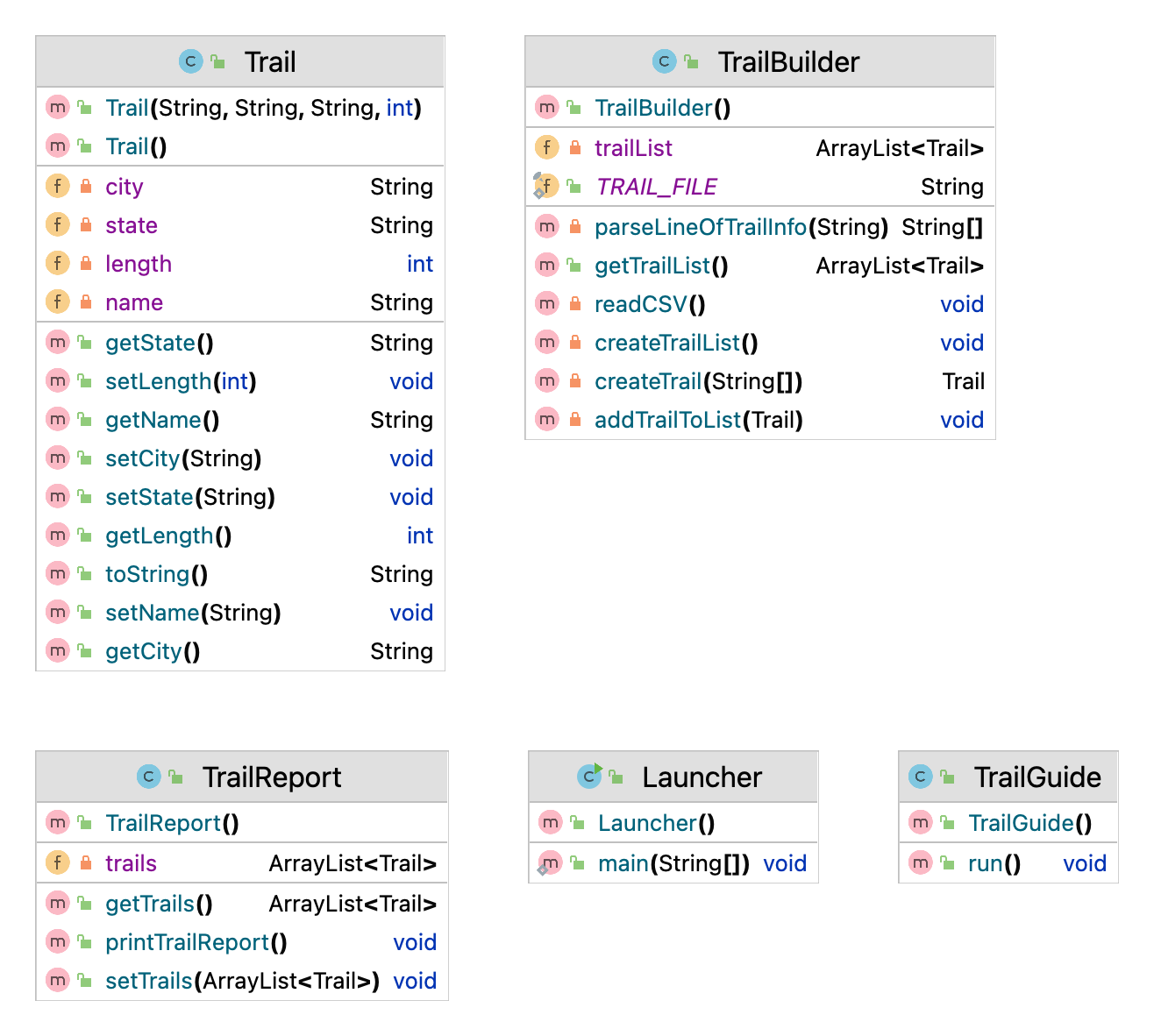
Trail Guide class summary
| Class | Responsibility |
|---|---|
Trail |
Data object that holds information about one trail: name, city, state, and length. |
TrailBuilder |
Reads the CSV file, parses each line, and builds a list of Trail objects. |
TrailReport |
Holds the list of trails and prints them to the console. |
Launcher |
Entry point. Contains the main method that starts the program. |
TrailGuide |
Coordinates the program. Its run method connects TrailBuilder output to TrailReport for display. |
Sequence Diagram
Whoa! What is this? A sequence diagram is a visual representation of the interactions and communication between objects within an application. It illustrates the chronological order of method calls between these objects, helping to visualize the flow of control and data. Sequence diagrams are valuable for designing, documenting, and understanding the behavior and interactions of different applications.
Use the below diagram to help visulize what is happening in the Trail Builder application. Maybe create a sequence diagram for your Analyzer project?

Trail Guide sequence summary
The sequence diagram shows the order in which objects talk to each other when the program runs:
Launcher.main()creates aTrailGuideand callsrun().TrailGuide.run()tellsTrailReportto set its trails by callingsetTrails().TrailReportasksTrailBuilderfor the trail data by callinggetTrailList().TrailBuilderenters a loop, processing each line of the CSV file:- Reads one line with
readLine(). - Parses the line into trail fields with
parseLineOfTrailInfo(line). - Creates a new
Trailobject withcreateTrail(trailInfo). - Adds the trail to its list with
addTrailToList(trail). - After the loop,
TrailBuilderreturns the completed list of trails toTrailReport. TrailGuidethen callsprintTrailReport()onTrailReportto print all trails to the console.
Before You Start: Read the Debugging Strategy
This lab asks you to fix compiler, runtime, and logic errors. Before diving in, review the Debugging Strategy page for a step-by-step process that will help you work through errors efficiently and avoid common pitfalls.
Instructions
-
Download the following classes and save them to your labs1 directory.
-
Download the following file and save it in your projects directory.
-
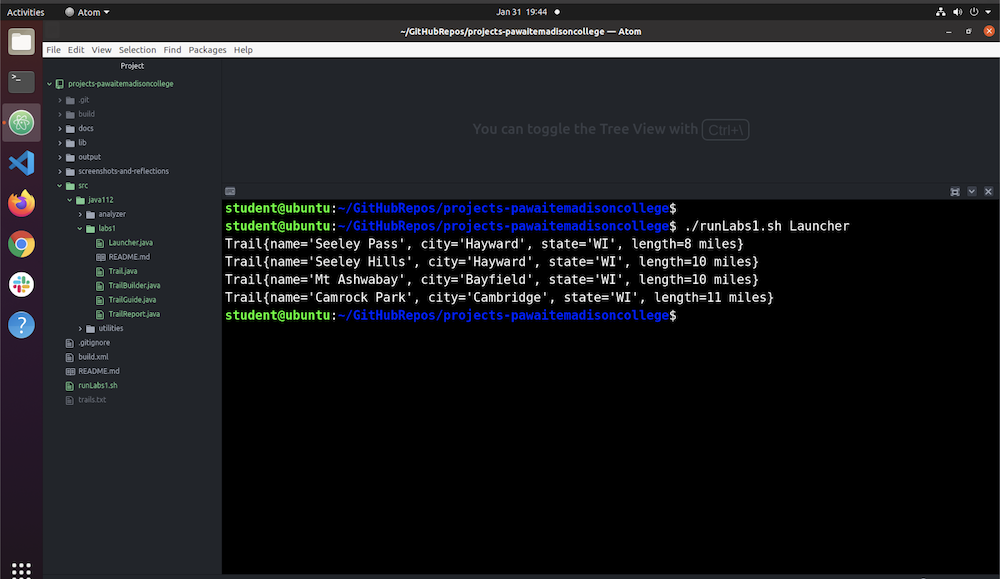
When working properly, this program should display the following output:
-
Currently, the program has several bugs and it does not compile. Your first job is to fix the compiler errors. Work through these one at a time.
-
After you fix the compiler errors, and you are able to run the program, you will discover some runtime errors. Your next job is to fix those!
-
After you fix the runtime errors, carefully compare the program output to the screenshot above to make sure the output is correct. If it isn't, there are more bugs to find.
-
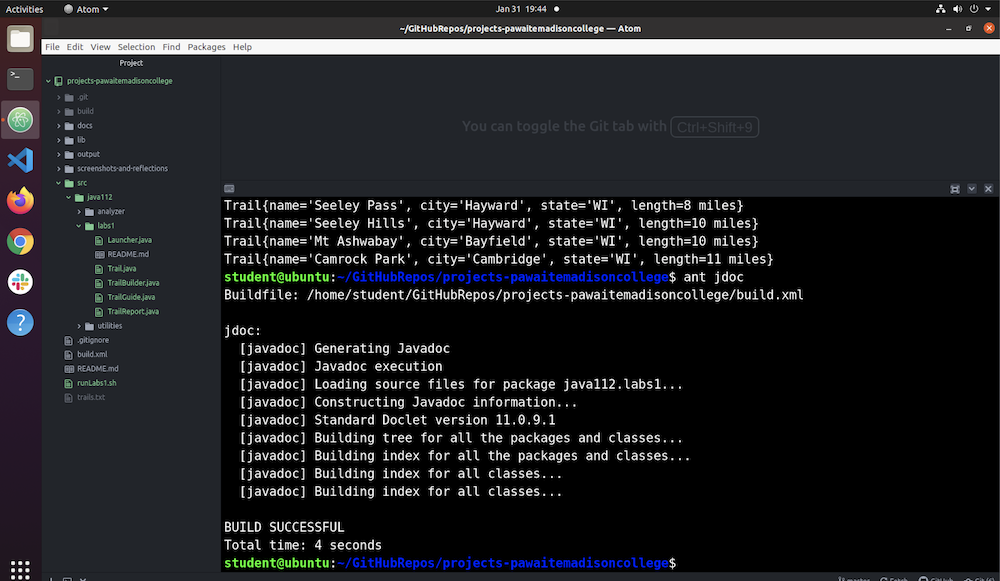
When the program is working properly, it's time to focus on JavaDoc. To begin this portion of the lab, run
ant jdoc, examine the warnings and errors, and resolve each one. The image below demonstrates a clean javadoc execution.
-
Once you acheive a clean javadoc execution, review the generated html documentation (it's in projects/docs) to make sure each class and method has well-formed, descriptive javadoc. If a comment is missing, add it. There are a five TODOs in the source code that will guide some of this work. You should answer the five TODO questions in your weekly reflection.
-
When you are finished, verify there are not any errors or warnings related to these classes when running
ant jdoc, and that your program still compiles and executes as expected.
Screenshots
To receive credit for this lab save screenshot(s) in the projects/screenshots/week4 directory.
You may combine the below into one screenshot and name it lab9.png.
- Add a fifth trail, named with your name, to trails.txt. If I were completing this, I might add: "Kari Schumacher,Madison,WI,17".
lab9-output.png: The command line output showing all five trails.lab9-jdoc.png: The command line output when runningant jdoc
Submit Weekly Labs
- Add, commit, and push!
- Verify all work, including screenshots are visible in GitHub.
- Select 00 Weekly Labs Ready for Review.
- Enter the title: Week 4 Labs
- Answer the reflection questions in the space provided.
- Add the answers to each of the 5 TODO question in Lab 9.
- Click Create.
Rubric
All of the following must be satisfied to achieve a "Met" status
- Screenshot should clearly show tests passing.
- Screenshot should clearly show expected output when running the program (happy path).
- Code and screenshots are properly named and saved in the correct directory.
- All lab steps have been accurately and appropriately implemented.
- Code adheres to the course coding standards.
- Commit messages are concise, atomic, and effectively describe the change(s) made.
- JavaDoc documentation is properly implemented, providing clarity and understanding of the code's functionality and usage.
- External sources (websites, classmates, AI tools, etc), if utilized, are referenced and documented within the code as comments.
Additional Considerations
- Issue created correctly with thoughtful answers to the reflection questions.
- JavaDoc questions answered correctly in the issue (5 TODO questions in the code).
- Screenshot shows
Ant jdocexecuted with no errors.